

Adding your app to your Android Phone
Jan 03, 2025●
1
Navigate to https://championair.glide.page/dl/pharmacies
2
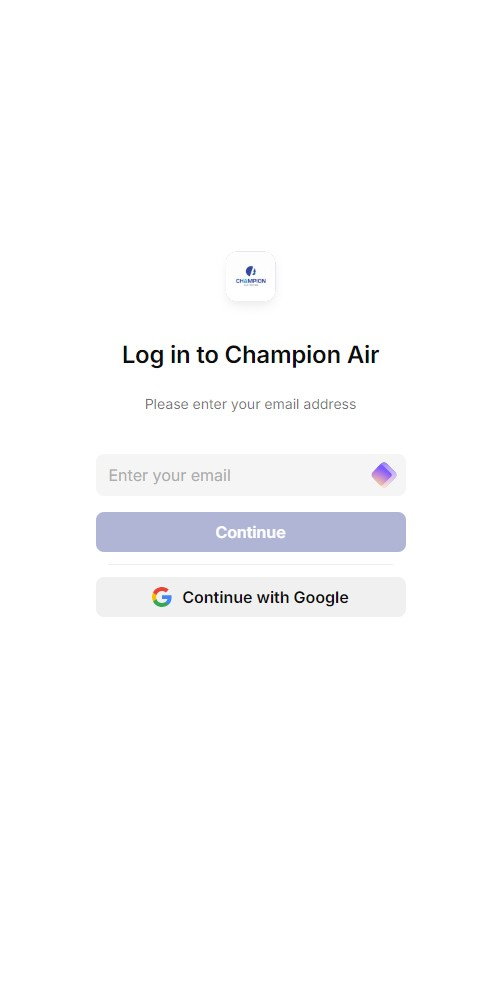
Touch here to sign in with your Google account.
3
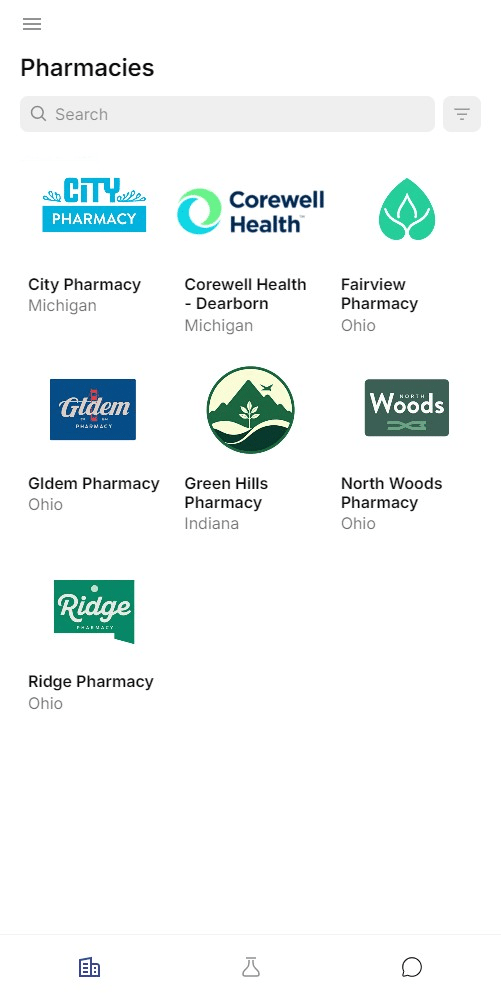
Logging in will bring you to your home page.
4
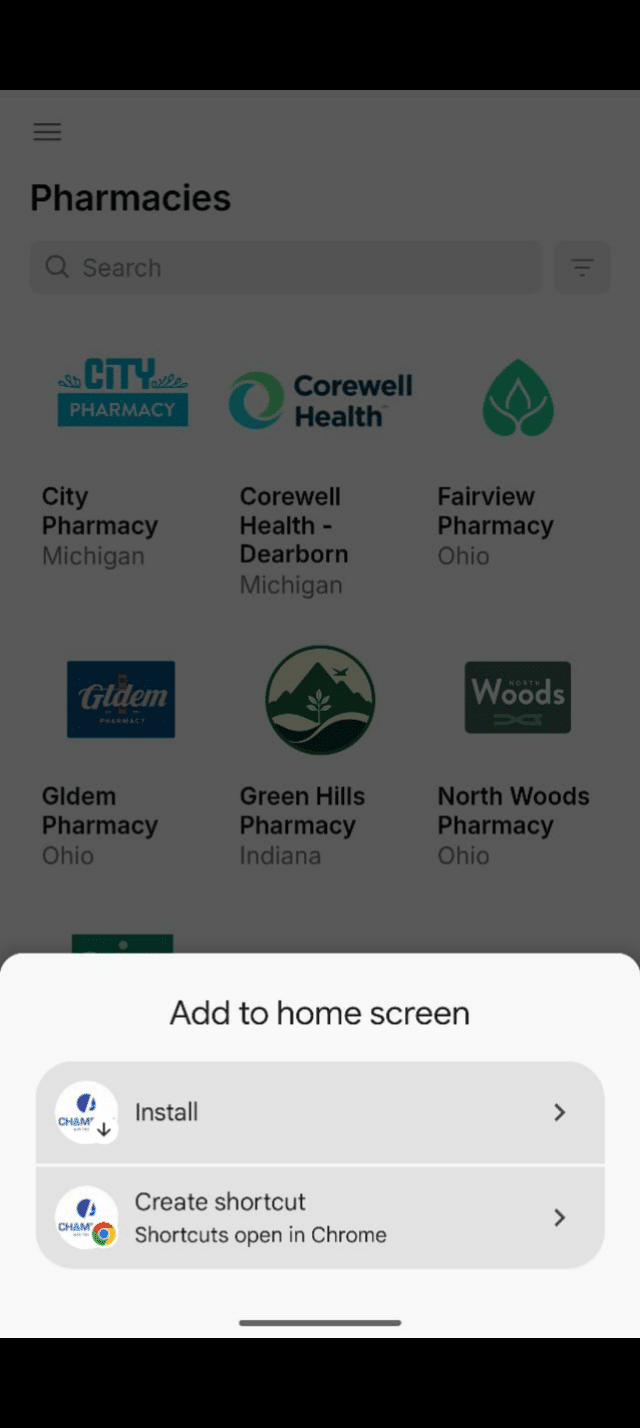
- A popup should slide up from the bottom of the screen.
- Click install to add it to your phone's apps and homescreen. Otherwise, proceed to the next step.
5
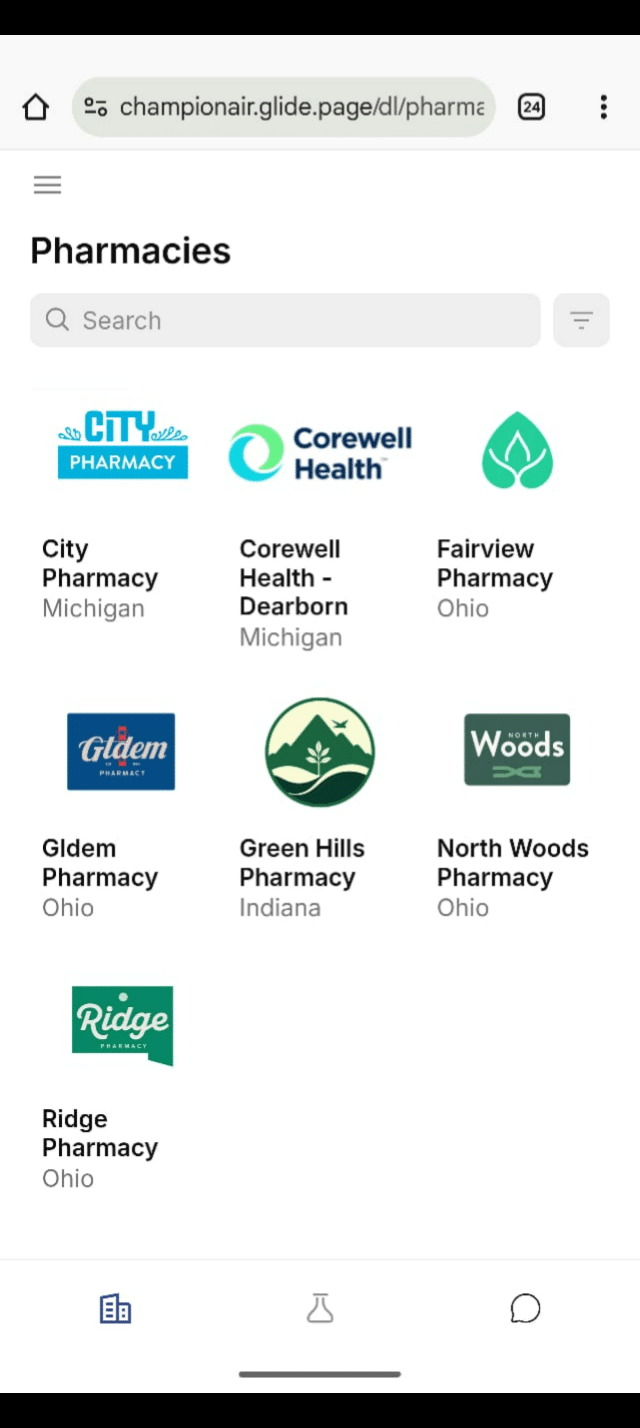
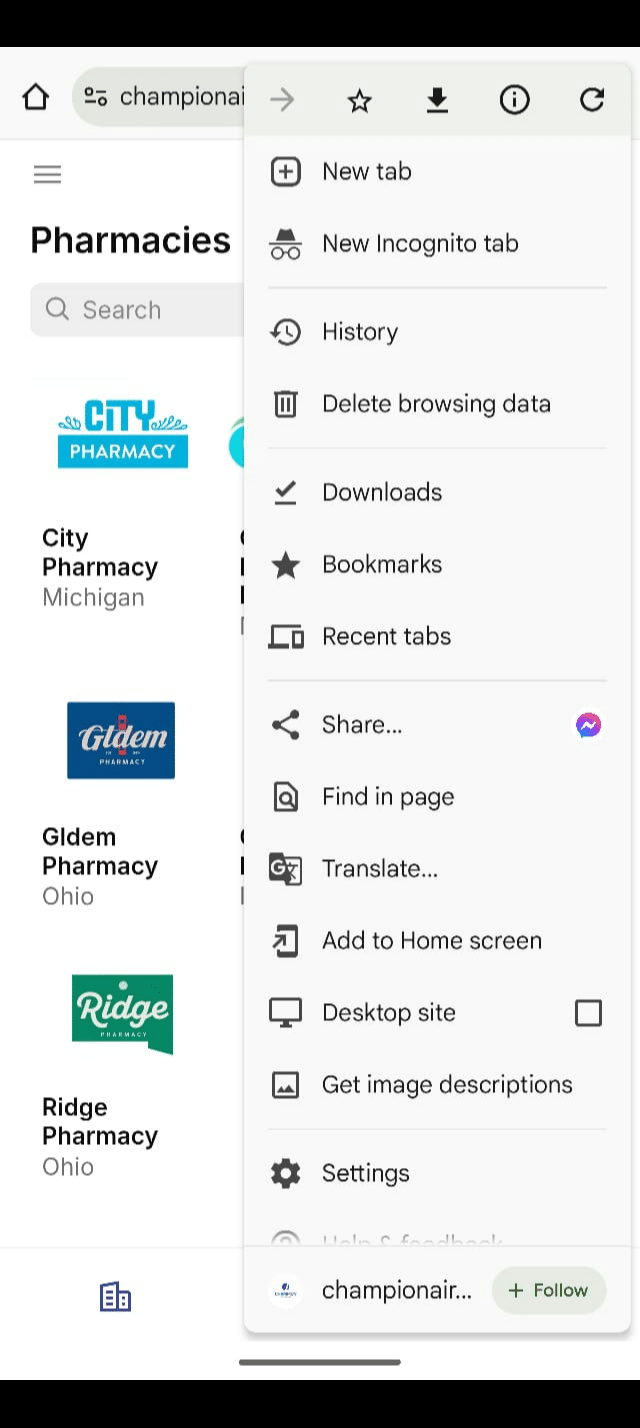
Touch the 3 dots in the top right hand corner of your screen.
6
Touch "Add to Home screen."
7
- Now a popup should slide up from the bottom of the screen.
- Click install to add it to your phone's apps and homescreen.